 Tidemark
How to turn a flyer or screenshot into calendar events on iPhone
School newsletters, party invites, concert posters, tickets — the dates are right there. Here's how to get them into your calendar without typing.
With Live Text (one event at a time)
- Open the photo or screenshot, or point the Camera at the flyer.
- Tap the Live Text button, then touch and hold the date.
- Choose Create Event, then fill in the title and place yourself.
With Tidemark's Scan to Event (every event at once)
- Tap + › Scan to Event and choose a photo, take one, paste a screenshot, or drop in a PDF on the Mac.
- Tidemark reads the text on your device and finds each event — title, date, start and end time, and place.
- Check the cards, untick anything you don't want, and tap Add.
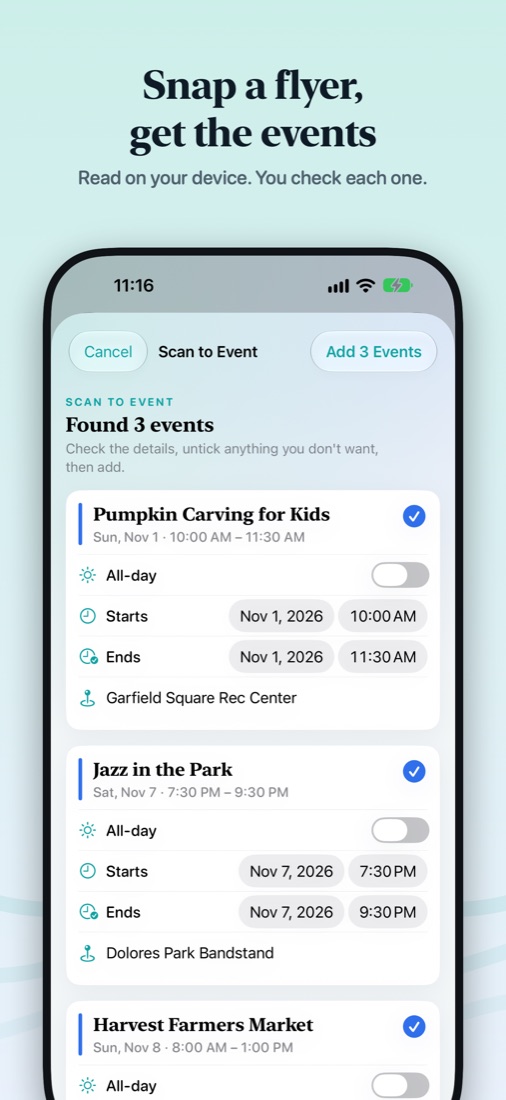
Private by design. The picture never leaves your device. On iPhones with Apple Intelligence Tidemark reads even messy layouts and itineraries; on every other device it still finds each event with its time and place.
Good to know
- Flights come out right, with times in each airport's time zone.
- A date that has already passed is flagged, so a wrong year doesn't slip in.
- Pasted emails and messages work too.
Get Tidemark free on the App Store
iPhone, iPad, Mac and Apple Watch · Free, with optional Tidemark Pro (7-day free trial)