 Tidemark
How to see travel time and get “time to leave” alerts on iPhone
Your calendar knows where you need to be. Here's how to make it tell you when to set off — and what to bring.
With Apple Calendar
- Add a location to the event (pick a suggested place so it has an exact address).
- Open Settings › Apps › Calendar › Default Alert Times and turn on Time to Leave.
- Make sure Calendar can use your location (Settings › Privacy & Security › Location Services › Calendar).
iPhone then sends an alert based on traffic from where you are. You can also add a fixed Travel Time block to an event when you edit it.
With Tidemark
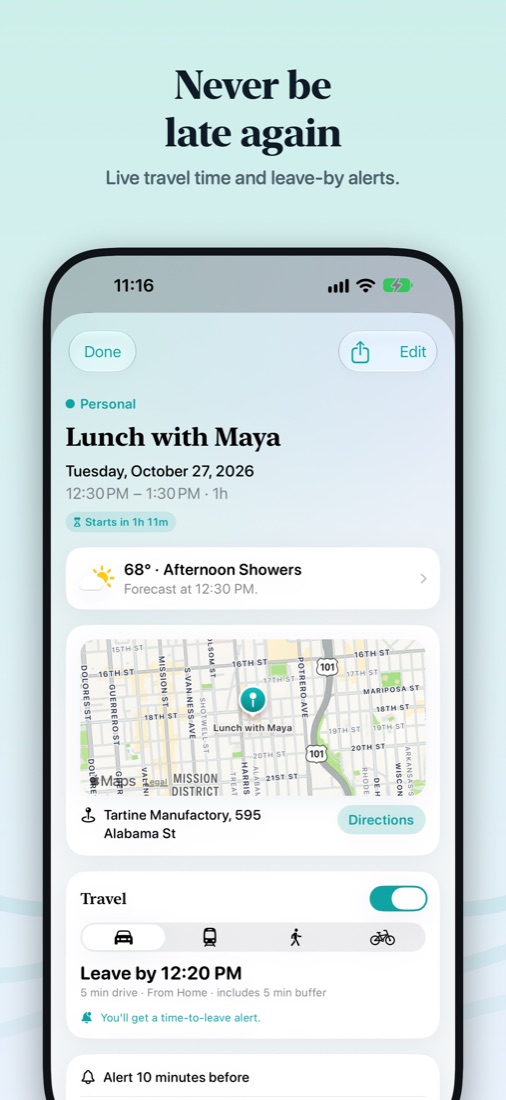
Tidemark works with the same calendars (iCloud, Google, Outlook and more) and shows a live “Leave by” time on every event with a place — in Today, on the event and in widgets.
- From where you'll really be: your current location, the event before, or home for tomorrow's first trip.
- By car, transit, bike or on foot, with traffic for the time you'll travel.
- Updates as you move while the app is open.
- Leave alerts with the weather where you're going: “Rain likely around 4:30 — bring an umbrella”, “Feels like 38° — dress warm”, or a heads-up to leave the meeting before early (Tidemark Pro).
Tips for accurate travel times
- Use a full street address, or the place's name with its town (“Zuni Café, San Francisco”).
- Rooms and extras are fine — Tidemark finds “1658 Market St” inside “Dinner at Zuni Café — 1658 Market St”.
- Set a home address so trips on other days start from home.
Get Tidemark free on the App Store
iPhone, iPad, Mac and Apple Watch · Free, with optional Tidemark Pro (7-day free trial)